![logo_CIONET_website_symbol.png]](https://www.cionet.com/hs-fs/hubfs/INT_CIONET-International/Marketing%20Collaterals/Logos/logo_CIONET_website_symbol.png?height=40&name=logo_CIONET_website_symbol.png)
The following documentation describes the "Event Detail List v4" module, designed specifically for managing attendee lists, live check-ins, and introduction requests during CIONET events. It serves to control on-site attendance, view guest profiles, and allow Business Partners to request introductions to specific attendees.
To create a new registration page, we recommend cloning an existing one, such as this page.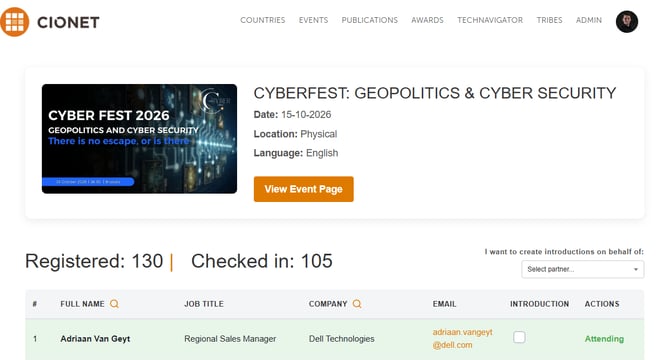
1. Views and Features by Role
Module automatically detects the user`s role, and adjusts its features accordingly. You can preview the role view in the content creator window:
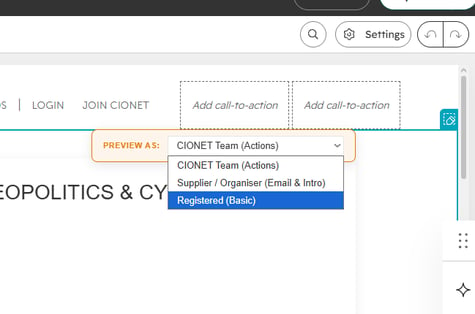
The roles are:
-
CIONET team member
-
Business Partner
-
Registered contact
Features:
- Basic Guest List: Available to Everyone.
- Basic Hover Card: Available to Everyone.
- Extended Hover Card: Available to Everyone.
- Search (on name and company column): Available to Everyone.
- Check-in & No Show Actions: Available to CIONET Team only.
- Registration Summary Excel Export: Available to CIONET Team only.
- Request Introductions:
- Available to Business Partners.
- Available to CIONET Team (Behalf of introductions)
(read more about introductions here)
- View Email Addresses (Contact Info): Available to Business Partners only.
- Excel Export: Available to Business Partners only.
3. Configuration Guide
A. Content Editor Configuration
To display data and adjust the interface, configure the module directly in the HubSpot page editor:
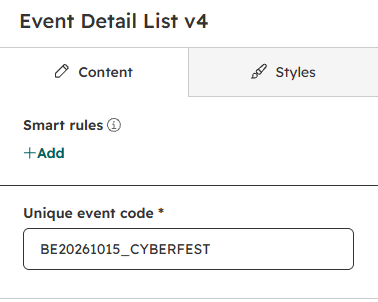
- Unique event code (Required):
- Layout Config:
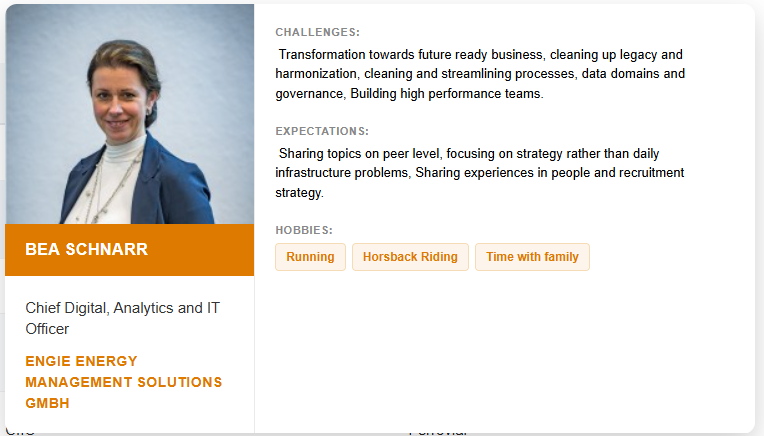
- Show additional info: Adds Challenges, Expectations, and Hobbies sections to the Hover Cards.
- Show email address: Unlocks the visibility of registered contacts email addresses (visible only to Partners).
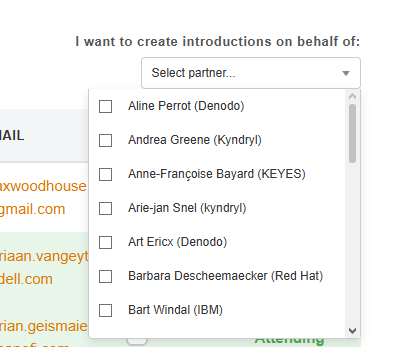
- Show introduction column for CIONET Team: Enables the CIONET Team to request introductions on behalf of Partners (adds a selection dropdown above the table).
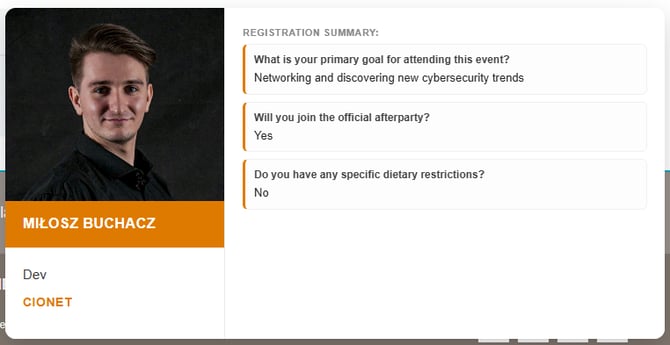
- Show register response summary: Displays detailed registration form answers on Hover Cards. This option also displays export excel button. (both visible only to the CIONET Team).
- Show download excel button: Displays the Excel export button for Business Partners.
- Show additional info: Adds Challenges, Expectations, and Hobbies sections to the Hover Cards.
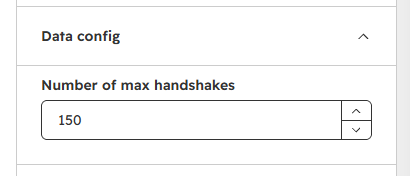
- Data Config:
- Number of max handshakes: Limit on the total number of introductions per event.
Additionally, there is a limit per company: each partner company can make a maximum of 10 introductions per event.
- Number of max handshakes: Limit on the total number of introductions per event.
B. HubSpot CRM Configuration
In order to make this module work properly, we have to update two properties in hubspot,
an event property and contact property.
-
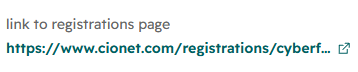
event property: In the event object, we have "link to registrations page" property. we need to paste there URL to our registrations page.
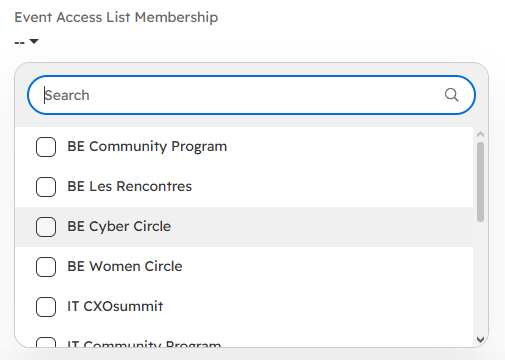
- contact property: To grant access to business partners, we need to update the "Event Access List Membership" property with the appropriate event type.
After selecting the event type, business partners will be granted access to the selected event types every Monday.
Alternatively, we can associate a contact with a selected event as an organiser, they will be granted access immediately.
All contacts needs to be logged in to see the page.
All contacts without access will be redirected to page below: